
How to clean-up risk files in shared mailboxes in DataMapper (EN)
This article covers how to clean up risk files stored in shared mailboxes.
DataMapper was originally designed with individual (private) accounts as the main users, but now shared mailboxes can be included and cleaned up too. Here's what you need to know:
- DataMapper can scan shared mailboxes - accounts like support@, info@, finance@, or internal@.
- Because access to these mailboxes is often spread across several people, they frequently don't have their own dedicated credentials. Instead, they're typically accessed from a personal account (for example, from peter@acme to support@acme).
Signing in to DataMapper
If a shared mailbox has already been scanned, there are two ways to log in to that specific account in DataMapper:
- SSO (Single Sign-On) - if your organization has SSO set up, sign in using the credentials connected to that account.
- Another email provider - if SSO isn't set up for the account, choose this option and enter the specific email address. DataMapper sends a one-time password (OTP) to the inbox; enter the code in DataMapper to log in.
Either way, you never need to remember a dedicated DataMapper password.
Log in to start previewing a shared mailbox's findings
When you access a shared mailbox in DataMapper separately from your own account, you'll need to log out of your account and log back in to the shared one. Once logged in, you'll see the findings in the risk documents table just as you're used to.
A simpler alternative is to create a group containing both your own account and the shared mailbox. This lets you review both without switching accounts - you only need to be logged in once, and grant that group access to view and manage files for the shared mailbox as well. Read more on how to create groups here.
| Option | What you do | What you'll see |
|---|---|---|
| Log in as the mailbox | Sign in to DataMapper directly with the shared mailbox's own login (SSO, or a one-time password sent to that inbox) | Only that mailbox's findings |
| Use a group | Create a group (or ask your admin to do so) and add the shared mailbox to it | Your own findings and the shared mailbox's findings together, under your normal login |
Most people use the group option - it means you don't need a separate login for every shared mailbox you have access to.
If a shared mailbox isn't showing up:
- Confirm you have access to that mailbox in your email client first - DataMapper mirrors those permissions; it doesn't grant new ones.
Using a group view to clean up findings
Once you've been added to the group, even as a regular user, you'll see an option to view files from the group and clean them up.
The view may look like this in your risk documents table:
- Make sure you've clicked "Group view" in the filters menu to see files from the group – they'll be listed the same way as your own files.
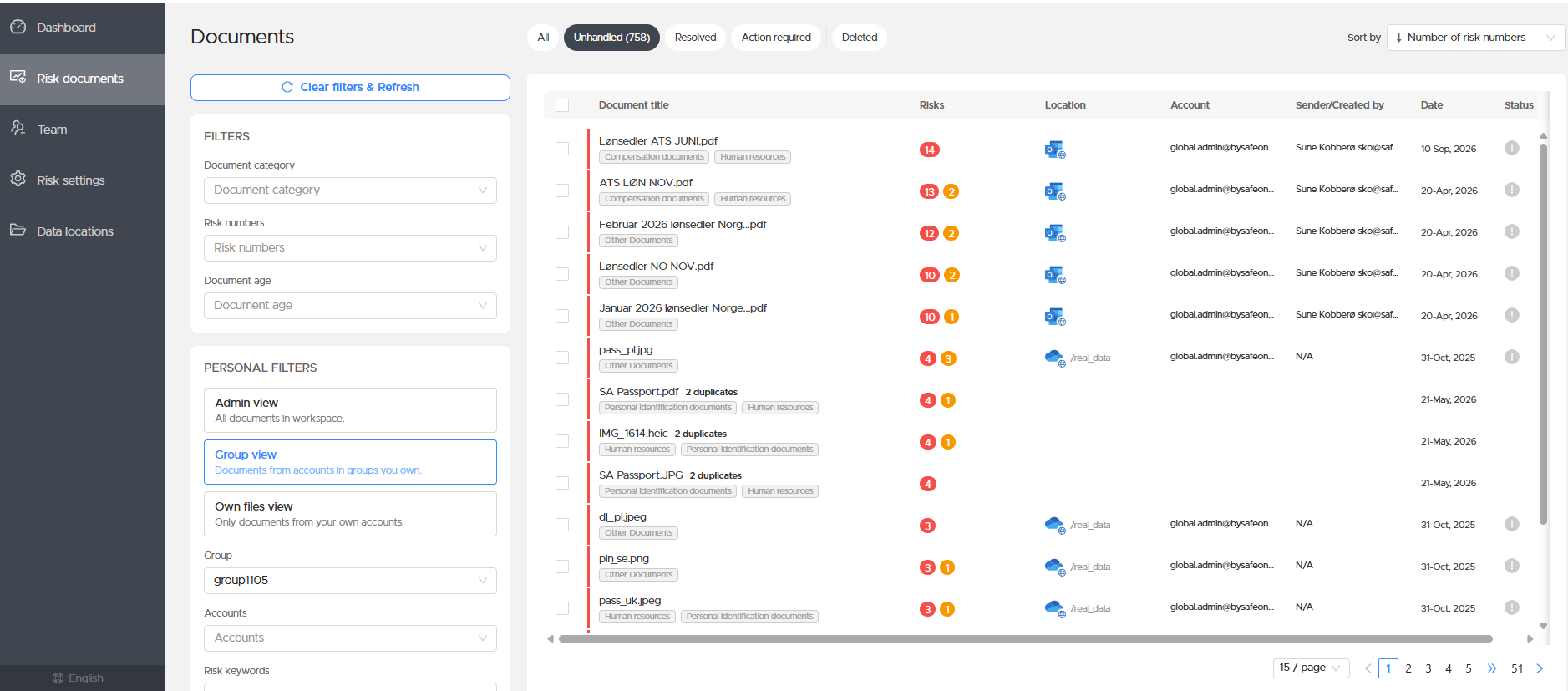
When you are done cleaning up files from the group, you can then click one of these options:
- Admin view (if you're an admin, this option will be available; otherwise it won't be)
- Own files view – shows only your own files, separate from the group view
Do you have any questions? You can write to us via the Help chat in DataMapper or send us an email at support@safeonline.dk 😊